
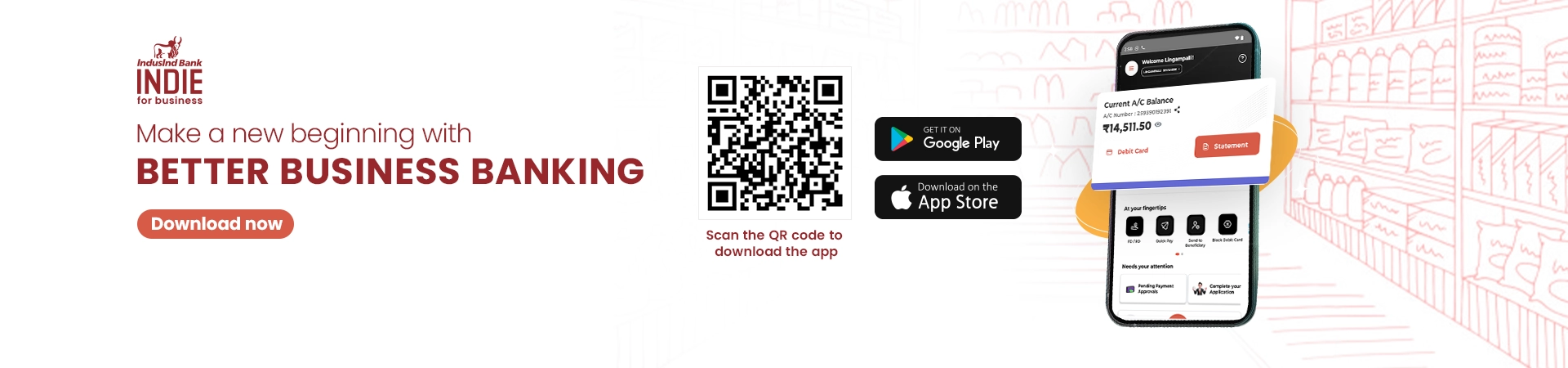
IndusInd Bank presents 'INDIE for Business'— the ultimate business banking platform available both on web and app.
Easy login to access your IndusInd Bank business accounts – Current Account, Overdraft & Loan Account – in one place. Download the INDIE for Business app and register yourself to access the web portal. Experience the industry-first maker checker process, smarter way of payments, organized statements, and much more! INDIE for Business takes care of your banking while you grow your business.


What’s in it for you?

Instant Digital Onboarding
Get started on Indie for Business using Aadhaar (mobile app only), a Debit Card linked to your Current Account, Retail Net Banking, or IndusDirect credentials. Complete a secure two-factor authentication process and register seamlessly through the mobile app or web platform.

Consolidated View
Save time by managing your IndusInd Bank business accounts, credit cards, loans & others.

Maker-checker process
Ensure accuracy of transactions with maker-checker process and get quick in-app notifications.
Debit/Credit Split in Statements
For simplified & organized accounting, get segregated view of debit & credit transactions.
Smart payment reminders
Never miss an important payment or EMI with smart payment reminders on the app.
Preferred account payments
Make payments from your preferred current account to overdraft easily from the app.

Instant FD/RD booking
Seamlessly book an FD/RD via the app and enjoy incredible returns for a secure financial future.

Debit card management
Set spending limits, reset your PIN, or activate/deactivate your card, do it all effortlessly.
Merchant Solutions
Order merchant QR, POS or Soundbox for digital payments, check settlement statement and do lots more.
Bulk Payments
Settle invoices in bulk by transferring funds via NEFT/RTGS. Also, upload CSV/Excel on the app for easy access and tracking.
Tax Payments
Download challan and pay GST, corporate tax, income tax, TDS, and other tax payments etc. on INDIE for Business

Bill Payments
Make all your business & personal bill payments including LPG & gas, electricity, DTH, credit card etc.

Additional Features
Carry out business transactions, stop cheque payment, download loan statement & interest certificate and much more.

Account Activation
Activate transaction rights digitally by configuring accounts, assigning users, and completing signatory authentication. Assisted activation through your Relationship Manager is also available..

Shopping Mall
Enable businesses to make secure online payments on e-commerce marketplaces, merchants and government bodies directly from their business accounts, with real-time authorization, enhanced control and complete transaction visibility.
Upcoming Features
- Open Current Accounts Digitally with a Seamless Self-Service Journey
- Connect Your Tally ERP with IndusInd Bank for Integrated Banking Operations
- Request Loan Limit Enhancement and Renewal Online
- Onboard Merchant Solutions for Large Corporates
- Simplified FD Management for Large Corporates
- Add Multiple Beneficiaries in a Single Upload
Curated for merchants, retailers and entrepreneurs to execute business transactions digitally, on a single platform. Register yourself as a merchant in a few clicks to explore exclusive merchant solutions suited for your multiple business needs. Get access to business banking solutions that promote convenience without the need to visit your bank.
- Order POS & generate dynamic QR or payment links
- Check settlement statement for payment reconciliation
- Download your QR & receive payments in minutes
- Enjoy same-day settlement of merchant collections, including weekends and holidays.
- Track collections and settlements seamlessly across multiple MIDs associated with your entity.
And much more!
Overview
Make the most of quick and easy payments through a seamless digital banking experience. Manage day-to-day transactions, Shopping Mall services, and stay on top of upcoming EMIs and important payments with timely reminders.
Features
- Quick Pay: Skip the hassle of adding a beneficiary to make payments with this exclusive feature.
- NEFT/RTGS/IMPS: Say 'yes' to digital funds transfer to anyone using NEFT/RTGS/IMPS.
- Shopping Mall: Pay via PA/PG network integration, view settlement status, and access transaction details through a centralized platform.
- Standing Instructions: Set up autopayment reminders for app subscriptions, bill payments, and more.
Overview
Take control over transactions with Maker-Checker feature on ‘INDIE for Business’ app. Reduce the risk of errors, get quick notifications along with easy view & reminders for the entitled maker and checker on the app. The existing entitled Maker-Checkers will be automatically migrated to the all-new INDIE for Business app. Also, make the most of simple division of tasks categorized as Approved, Rejected and Pending.
Revolutionary maker-checker process
- Enhanced Accuracy: Take control of your transactions in a better way with low risk of errors
- Easy View & Reminders: Take advantage of the simple interface & reminders for both maker and checker
- Simple Categorization: Check for Approved, Rejected and Pending categories on the app
- In-app notifications: Get notified instantly of the actions happening to be aware of the process
Overview
Manage your debit card and monitor your activity with ease using INDIE for Business app. You can set spending limits, reset your PIN, activate or deactivate your card and enjoy comprehensive control. Experience convenient debit card management on-the-go today!
- Set Spending Limits: Customize your card's spending limits to match your needs and enhance your security
- Reset Your PIN: Forgot your PIN? Reset it instantly through the app
- Activate/Deactivate: Temporarily deactivate your card if it's misplaced and reactivate it when found
- Comprehensive Control: Enjoy full control over your debit card settings and usage, all from a single app
Overview
Make the most of intelligent notifications & reminders regarding transaction approvals for payments & EMIs along with alerts on pending tasks/process. Ensure that no important tasks/payments slip away with the ultimate ‘INDIE for Business’ app.
- Transaction Approvals: Enhanced accuracy & security with approval-based transactions by the entitled maker-checker
- Payment Reminders: Never miss an important payment or EMI with smart payment reminders on the app
- Pending Task Notifications: Stay on top of your business finances with smart notifications of pending tasks
Manage your statutory obligations seamlessly through INDIE for Business. Pay GST, Income Tax, TDS, Customs Duty, EPF contributions, and other statutory dues securely from a single platform.
Features
- Pay GST, Income Tax, TDS, Customs Duty, EPF, and other statutory payments.
- Make EPF contribution payments seamlessly through the EPF Portal using INDIE for Business.
- Download challans and complete payments with ease.
- Easy access to payment records and transaction history.
- Secure, paperless, and convenient payment experience.
- Stay compliant and avoid delays with timely statutory payments.
Click here to go through the steps to download Challan for your tax deposits.
Overview
Why shuffle between multiple apps for bill payments? Simplify your business & personal bill payments with INDIE for Business. Pay electricity, water, gas, and other utility bills in just a few taps. INDIE for Business App securely processes your payments, providing instant receipts and payment confirmations. You can also schedule recurring payments, track payment history, and receive reminders for upcoming bill due dates.
Applicable on:
- App subscriptions
- LPG & Gas
- Electricity
- Credit Card
- DTH & Cable TV
And more!
Take control of your business loans by easily tracking and managing your loan accounts. Simplify loan management, reduce debt stress, and focus on business growth. With INDIE for Business, stay on top of your loan obligations and make informed financial decisions.
- Keep a track of your loan
- Get smart repayment reminders
- Download interest certificate
- View loan statement in a few clicks
Say goodbye to tedious transactions and hello to easy bulk payments for invoice settlements. With INDIE for Business, you can save time & effort and ensure your payments are processed quickly and securely. Additionally, you can track payment status and receive real-time notifications. Manage your business finances efficiently and focus on growth with INDIE for Business App's easy bulk payment solutions.
- Upload CSV/Excel on the app for easy access and tracking
- Transfer funds via NEFT/RTGS (single debit multiple credit)
If you are Proprietorship Or Partnership firm, you can submit the request for Bulk Payment to the Bank through your RM or Branch.
Instant Activation upon Registration.
i. Self-Service Activation via App & Web
- Complete onboarding digitally through the Indie for Business App or Web platform.
- Select the accounts you wish to operate and assign users with appropriate roles and permissions.
- Authorised signatories can digitally authenticate the account configuration.
ii. Activation via Branch / RM
- Contact your Relationship Manager to initiate onboarding through a physical form.
- Specify the accounts and designated users in the form.
Note: Transaction rights will be activated within 2 working days upon successful authentication and completion of the onboarding process through either channel.
Quick Tutorial To Log Into INDIE For Business
Click here for a quick tutorial to log into INDIE For Business app.
INDIE for Business FAQs
Indie for Business - Digital SME Banking Solutions
What is Indie for Business ?
Indie for Business is a one stop business banking app which allows customers to avail banking services to conduct their day-to-day business.
Is Indie for Business Secure for Banking use ?
Indie for Business is developed employing robust security measures. We follow all compliances as per regulations ,conduct regular updates and monitor our systems, network for making it a secure environment for our customers to bank with us.
The platform comes with following security features -
2 Factor Authentication: This requires multi factor verification to prevent access to Indie for Business by unauthorised user
Communication Encryption: The information on platform is encrypted end to end, ensuring that data intercepted at any moment is unreadable
Secure fund transfer: All financial transactions require OTP verification which is sent to registered mobile number of user. Also, fund transfer information exchange is secured with digital certificates to protect from unauthorised access to financial data
Who can register on Indie for Business ?
Existing IndusInd Bank customers who have already availed business banking services such as Current Account, Overdraft and Loan facilities can register on Indie for Business app to avail digital banking services. They can also apply for new services from the app.
Sub-Users added by customers to operate on Indie for Business can also register using their Mobile no. and access code shared with them over email and mobile phone. Once onboarded they can operate and access features based upon the role that they get.
New Customers can register themselves as a Guest User on the app to explore and apply for the services offered by the bank.
How can I register for Indie for Business ?
If you are an existing customer, You canregister on the app by following the below steps:
1. Download the Indie for Business app from Playstore(Android) or Appstore (iOS).
2. Select/Enter your mobile number registered with the bankand validate via SMS
3. Complete your 2nd Factor authentication via any of thefollowing mechanism: Aadhar based OTP, Debit Card details orInternet Banking credentials
4. Once authenticated,
a. If you are a Sole Proprietor or an Individual, you will bedirectly registered on the app
b. If you are registering on behalf of a Partnership, One PersonCompany , LLP or Private or Public ltd. company, you need toadditionally fill and submit a User Acceptance form [UAF]. Youcan fill it post registration from the app itself or you can reachout to your RM or nearest bank branch for the same. Once, theform is processed, you will get full access to those accounts onIndie for Business.
I am not a Bank's customer, can I login into Indie for Business ?
Yes. You can register on the app as a Guest User and explore the business banking services offered by the bank such as - Apply for Current Account and Short Term Business Loan, Merchant Services
I am not able to login to Indie for Business app, what should I do ?
If you are an existing customer of the bank, you need to register on the app using your registered personal number only and not the entity mobile number in case the two are different. So, please check if you are registering on the app using the personal number registered with the bank as per bank's records.
I am not able to register on Indie for Business Web Portal, what should I do ?
To Register/Login on the web portal, you need to first register on the mobile app by creating an MPIN. You can then login to the web portal of 'Indie for Business' and avail the complete set of services offered on the mobile app.
I have forgotten my MPIN, how can I login ?
You can reset your MPIN by clicking 'Forgot MPIN' and completing the 2 factor authentication.
I have been blocked on the app due to incorrect MPIN. What should I do ?
You will be blocked on the app after incorrect MPIN attempts. To unblock, please reset your MPIN by clicking 'Forgot MPIN' and completing the 2 factor authentication.
I am an employee of a company holding a current account with the bank. How can I register on Indie for Business?
If you are an employee of a company, you can get access to the app only if you have been designated as a Sub-user by your company for this app. Your company will need to contact their Relationship Manager to add you as a Sub-User in the bank's system.
I have received an access code, how can I register on the app ?
Access Code can be used to register oneself as a Sub-user of any entity.
You can click on the option "If you have an Access Code" on the first screen and validate your access code to register yourself as a sub-user on Indie for Business. The access code will be shared in two parts: First 3 digits of the code is sent on mobile and the last 3 digits on email.
Can I install the app on a different mobile device ?
Yes, you can install the app on a different device by going through the registration flow afresh on this other device. However, on registering on this other device, you will be de-registered from the previous device. Also, you cannot register on a third device in a 30 day period.
I am not able to see my banking relationship post registration
Please ensure you are logging into the app using your individual mobile number registered with the bank as only individual users are allowed on the app.
Once you register or log in successfully, you should be able to see all the business relationships linked to your customer id.
I have registered on the app but I am not able to operate on behalf of my entity
In order to operate on behalf of an entity, your entity needs to complete registration on the app. An entity gets registered on the app only when all the Authorised Signatories have registered on the app using their respective mobile number registered with the bank. Till then, you only have view-access of your entities.
Also, If your organisation is a Partnership, Private ltd., Public ltd. and OPCs, then please submit the User Acceptance Form (UAF) for configuration of users and access rights.
Is there any fee for using the Indie for Business app ?
No, there is no fee to use Indie for Business for general banking services. However, few additional services which are offered through our partners may have additional fees. The same will be informed to customers by the third parties themselves before using their services.
I am a customer with a partnership type of business entity, how can I register on the app?
If your company is a higher constituent company such as partnership, private limited company, limited liability partnership etc., then you have to fill a UAF to enable entitlements for using the app. Once the entitlements are setup, you will be able to access the app and avail banking services. Please contact your relationship manager for assistance.
I have filled the UAF but still unable to access the app?
After filling the UAF, the entitlements are setup in 2-4 working days. Once all the authorised signatories have onboarded on the app, you will be able to access your banking services. Until then, you will have view-only rights on the app
Is it mandatory to fill the UAF?
If you are an individual or Sole Proprietorship, your accounts are auto setup at the time ofregistration on the app and hence you do not need to fill a UAF separately. But in case you want the digitalbanking access for higher constitutions like partnerships, LLPs, OPCs, private limited and public limitedcompanies, you need to fill a UAF for getting transaction access to those accounts.
Can I install the app on behalf of the account holder (family member, friend, relatives)?
No, Indie for Business app has SIM Binding as a security feature in place that restricts the customer to register on the app through their own registered mobile number only.
How will I know if the app onboarding is successfully completed?
SMS alert is triggered on every successful onboarding. This is currently sent once user has set MPIN on his device.
What is the minimum and maximum tenure and amount for booking an FD?
With AA+ Crisil and ICRA rating, IndusInd bank is one of the safest banks for opening fixed deposits. Investors can choose between flexible tenures ranging from 7 days to 10 years according to their needs and deposit capacity.
How will I receive my interest and principal on maturity?
On maturity, the principal amount and the interest component accrued can be credited to the designated current account specified and the payout instructions given at the time of the booking the FD. In the app, you have the flexibility to set the payout instructions at the time of FD booking, as per your requirements.
I already have an FD/RD, can I manage it on this app ?
Yes, if you an Individual or a Sole Proprietorship, the same will be available to view and manage on the app. You can modify the maturity instructions and do partial / full withdrawals.
How can I add a nominee to my FD/RD ?
If you are an Individual or Sole Prorietorship, you can add the nominee details from the app or web portal, at the time of FD/RD creation.
Can I withdraw my FD/RD before maturity ?
Yes, for Individual and Sole Proprietorship accounts, you can withdraw your FD before maturity. However premature withdrawals may attract a penalty. For more details, please click here.
What is Min and Max tenure of Recurring Deposit Account?
The minimum tenure for an RD account is 12 months and the maximum is 10 years.
Can I change the tenure and installment due date, (auto debit date) of my Recurring Deposit?
No, it is not permitted to change the tenure and installment due date, (auto debit date). We request you to open a new Recurring Deposit with the desired due date and tenure.
How can I prematurely liquidate my recurring deposit?
Yes, if you are holding an Individual or Sole Proprietorship account, you can withdraw your RD before maturity. However, premature withdrawals may attract and penalty. For more details, please click here.
How can I select the account type for generating a statement?
Once you are on the account statement screen, you can toggle between your accounts to see the statement for the selected account
How can I view my account number and balance?
The account details are available on the cards, visible in the top section of the landing page. Further, it can be accessed via the 'At your fingertips' and the Hamburger menu sections.
Will I see all my accounts for statements?
Statements are available for Current Accounts, Overdraft Accounts and Cash Credit Accounts.
How are transactions displayed?
Transactions are displayed on screen in a reverse chronological order i.e. most recent transactions are listed on top. You also filter your transaction list based on credit/debit type and on custom date filters
Can I choose the file format for the statement?
Yes, the app offers both - PDF and Excel formats for downloading statement, ensuring accurate and up-to-date transaction data in the chosen format.
Can I filter my Statements?
Yes, You can filter the statements on the basis of Date, Payment Mode (NEFT/IMPS/RTGS/UPI) and Credit/Debit Transaction Type. However, filters will not be applicable to downloaded statements.
You can further "Sort" your statements by the ascending or descending order of the date of transaction
What type of Transactions can I make ?
You can use the following transaction types to make online payments:
1. IMPS (Immediate Payment Service): upto INR 5 lakhs per day
2. NEFT (National Electronic Fund Transfer): No maximum limit, subject to the channel's defined maximum limit
3. RTGS (Real Time Gross Settlement Service): Minimum of INR 2 lakhs, subject to the channel's defined maximum limit
4. BBPS (Bharat Bill Pay System): No maximum limit, subject to the channel's defined maximum limit
5. Tax Payments (GST and CBDT): No maximum limit, subject to the channel's defined maximum limit
Do I need to add beneficiary to make payments ?
No, it is not mandatory to add a beneficiary for making payment. You can make use of 'Quick Pay' feature for payments upto 50K per day to any unsaved account by entering their bank details only
I have added a beneficiary, when can I start making payments to the account ?
You can start making payments to your beneficiary after 30 minutes of adding them successfully on the platform.
What is the limit on transactions on the app?
For a given entity, Daily transaction limit will depend upon your Turnover updated withinbank. The per transaction limit for a user is limited to 25L.
How to setup standing instructions
You can set up standing instructions / recurring payments from the payment dashboard by adding beneficiary details and specifying the debit cycle for the payments to be scheduled. Frequency of debit can be either "weekly", "monthly" "yearly". You can also choose to modify existing standing instructions, put them on hold or delete them.
Can I make bulk payments ?
You can make bulk payments only if you have access to the feature. You can simply upload the transaction details using the file template provided on the platform. In case you don't have access to the bulk payments, you can contact your RM or nearest branch for the same.
Is there any specific limit under bulk payments ?
There is no separate limit for bulk payments. The value of transactions which are provided in the upload file should be within the per transaction and per day limits defined for your entity.
Why Bill Payments feature is not active for me?
Currently Bill Payments is only 'Active' for Individual and Sole Propriterships. If you are from other entity types, the feature is enabled and will come in future
How can pay my credit card bill ?
You can navigate to bill payments page and select credit card option. After that you need provide your credit card number and mobile number through which we shall fetch your credit card bill.
Can I make part payment of credit card bill?
You have 4 options to pay the bill pay - Full payment, minimum amount, oustanding amount (which includes full payment and current outstanding amount) and custom amount as per your choice. The amount shall be visible in the app, you only need to select and pay the amount through your current account
How can I enable bulk payments for my accounts?
If you are Private or Public limited firm In case you do not already have a bulk payment access.
Also if you happen to ave any of the below:
- 1. Active OD account or
- 2. Trade related services or
- 3. You had bulk payment active on Indus Direct (Registered on the platform Post May 2024)Bulk payment feature will be automatically activated
In case you don't come under any of the above conditions, you can raise the request for activating Bulk Payment feature with your RM or Branch by filling up the UAF and providing a request letter on behalf of your entity/firm. Bank will conduct a due diligence to check whether your requirement for bulk payment is justified or not and will accordingly process your request.
How can I download my Term Loan account Statement?
From the list of accounts listed, select the account for which you want the statement. Thereafter, select the period of statement and choose the medium as "Download" or "Email"
How can I download Interest certificate for my acccount
To download Interest certificate for the account go to Loan section. Select the Loan account for which you want the interest certificate and the corresponding Financial Year.
How can I view the current floating interest rate of my loan?
You can view the interest rate under the 'Manage Loans' section and selecting the required Loan Account
How can I download the repayment schedule of my Term loan?
Repayment schedule for Term Loans can be downloaded under manage loans option for the selected Term Loan
How can I see the number if Installments made on my loan?
Click on 'View detail' in the Loan card visible under Loans section
How can I see if any amount is overdue on my loan?
Under 'Manage Loans' option of your loan, the Overdue amount will be reflected automatically
How can I raise service request through app?
You can raise requests under the 'Service Requests' module in the Hamburger menu. Please follow the prompts to fill out the necessary details, submit the request, and you will receive a confirmation.
Can I track and view the status of the service requests raised through app?
You can track the status of your service request by logging into your banking app and navigating to the 'Service Requests' section. Here, you will find a list of your submitted requests along with their current status.
How can I block/unblock or permanently block my debit card?
You can block/unblock debit card temporarily or hotlisting (permanently blocking the debit card) in real-time via the 'Manage Cards' section under Debit Cards module.
Can I reset my debit card pin using the app?
Yes, debit card pin can be reset in real-time via the 'Manage Cards' section under Debit Cards module.
What is Positive Pay?
Positive Pay is a fraud prevention mechanism introduced by the Reserve Bank of India (RBI) to enhance the security of cheque-based transactions. It requires account holders to provide key information about the cheques they issue to their banks like cheque number, amount, date, and payee name to the bank before these cheques are honored for payment.
How can I register for Positive Pay?
You can click on 'Transaction' icon under 'Service Request' module and then click on 'Positive Pay' button. Further, you will need to provide necessary details to register for Positive Pay.
Can I stop payment of cheque which has already been issued?
Yes, you can click on 'Transaction' icon under 'Service Requests' module and then click on 'Cheque Stop Payment'. Please provide the necessary details to log the stop payment request. You can track request on the app.
Can I order cheque book using the app?
Yes, you can navigate to Service Request section in the hamburger menu and then click on 'Cheque Management' button under which 'Order Cheque Book' button is present. Upon clicking the button you can select the current account for which you need the cheque book and the number of cheque books. You can also track the delivery status of cheque book.
Will I be able to track the delivery status of cheque book request raised by me?
Yes, you can navigate to Service Request section in the hamburger menu and then click on 'Cheque Management' button under which 'Delivery Status of Cheque Book' button is present. Upon clicking the button you will be able to view the current status of the cheque book delivery along with request and tracking number (AWB number).
Can I update my registered Email address through INDIE ?
Yes, you may navigate to service request page and then click on update profile button. Post that you need to specify the new Email address and provide OTP confirmation to get your personal email ID updated in the bank.
How can I check if I am registered for collection services via QR/POS device?
Click on 'Collect' button at the bottom navigation bar. The app will automatically detect if you are registered as a merchant with the bank. If not, it will ask you to complete the merchant onboarding process.
How do I register myself for merchant services to receive money either via QR or POS device?
Click on 'Collect' button at the bottom navigation bar and follow the onboarding instructions. After providing all necessary details you will receive a communication within 1 to 2 days regarding status of your application and post that you may start collecting money from your customers.
What methods are available to collect money from my customers?
You can collect money from QR codes which can be scanned by your customers or via POS device where customer can make payment from credit or debit cards. There is an additional method to collect money by sending collection links to your customers. Please check your plan to view the available methods.
How can I collect money via QR code?
You may collect money either via the physical copy of the QR placed at your establishment or generate QR code from the app. To view QR in the app, press the 'Collect' button at the bottom of the screen after you login and then either press 'My QR' button or 'Dynamic QR' button. Your customer only needs to scan the QR code and can make the payment from any payment app installed on their device.
What is the difference between My QR and Dynamic QR?
With My QR customer will need to enter the amount themselves after scanning the QR code. However with Dynamic QR, you will need to enter the amount and customer only needs to scan and pay the amount.
Is it possible for me to collect payments from a customer via payment links ?
You can share payment links with customers by clicking on 'Collect' button and then clicking on 'Create Link' button. After entering required details a collection link will be generated which can be sent to your customer through whatsapp and other sharing platforms. Customers will be able to make payment through their preferred method by clicking on the payment link.
What is khaata service?
Khaata is a digital wallet service through which you can manage and track credit purchases made by your customers. It allows you to set limits for each customer separately as per your business need and send them Payback reminders allowing you to increase your sales and customer retention.
How can I use Khaata service?
Click on 'Collect' button and press the 'Khaata' icon to avail the service. You will need to take OTP confirmation from the user as a one time activity, post which you can easily record subsequent customer transactions.
Where can I view the payment done by a customer to my establishment?
Click on 'Collect' button and you will be redirected to merchant home screen. On the home screen, press 'Transactions' button, post which you will be able to view all the payments made by the customers to your account.
What is difference between transaction and bank settlement?
Transaction refers to the payments done by customers for the goods or services offered by you. Bank settlement refers to the amount which is actually credited into your current account after deducting the charges as per your active plans. Kindly note that each transaction is credited into your current account on T+1 working day.
When is the money paid by a customer actually credited into my account?
A transaction is the payment made by customers for your goods or services. Bank settlement is the amount credited to your current account after deducting applicable charges based on your active plan. Please note, settlement amount is credited to your current account on the next working day (T + 1).
Money paid by my customer is not credited into my current account, what should I do?
Payment done by customers is credited into your current account on T+1 working as per bank's guidelines. If you have not received the payment into your account after T+1 working day (excluding bank holidays and weekends), please reach out to our customer care for more details.
Can I view my current plan and charges?
Yes. Click on the 'Collect' button and then click on 'Merchant Profile' to view your current plans and charges.
How can I order paper roll for my POS device?
To raise a request for a paper roll, you have two options. First, you can click the "Collect" button at the bottom navigation bar to view all services and then select "Request for Paper Roll." Alternatively, you can navigate to the "Service Requests" section via the hamburger menu, select "Merchant Services," and then press "Request for Paper Roll" to submit your request.
How can I order additional POS device for my establishment?
To raise a service request for an additional device, you have two options. First, click on the "Collect" button at the bottom navigation bar. From there, press "Request for Additional Device" to submit your request. Alternatively, you can navigate to the "Service Requests" section by pressing the hamburger menu, then select "Merchant Services," and finally press "Request for Additional Device" to raise the request.
I am facing issues with POS device or QR code, how can I get the problem resolved?
To raise a service request for assistance with your problem, you have two options. First, Click on the "Collect" button at the bottom navigation bar. From there, press "Report an Issue" and enter the details to raise the request. Alternatively, you can navigate to the "Service Requests" section by pressing the hamburger menu, then select "Merchant Services," and finally press "Report an Issue" to enter the details and raise the request.
What docunents do I need to register for merchant collection service?
No additional documents are required to register for merchant services. You only need to have a current account in IndusInd bank and need to complete the on-boarding journey by providing the necessary details to avail the collection services. The entire registration process can be completed within the app.
Can Bharat Financial Inclusion Limited (BFIL) account holders access merchant collection services?
Merchant collection services are not available for BFIL account holders of the bank.
Can I add users with a view limited to show only collections done at the establishment ?
Yes, there is an option to add sub users with collector role. All such users will be redirected directly to the merchant collection section in the app and will not be able to view other sensitive information about the entity in the app.
How can I reconcile to check the collection received for the day via QR/POS against the settlement into bank account the next day?
After login into INDIE for Business, navigate to merchant section by clicking "Collect" or "Merchant" in the footer. Then press the bank settlements tab to check the UTR of the combined settlement into current account against all the collections received on the previous working day.
What does payment summary reflect?
Payment summary reflects the total collections recieved on the day and get updated everytime you land on the screen. There is also an option to press the refresh button post which the collection amount for the day will get updated.
Can I check which merchant service requests are in pending state ?
Once you navigate to the merchant services in the service request section, there is an option to apply filter on the status of the service request. You may filter and view all services which are either in initiated or pending or closed state.
How can i view the settlement statement for all the collections received ?
Monthly settlement statements can be readily downloaded for previous three month by navigating the merchant services page and pressing download settlement statement. These statements are also sent on the registered Email address. Additionally you may also subscribe to receive the settlement statements on daily or weekly basis by providing your input after pressing download settlement statement.
How can I spot the settlements in my account statement against my collections via UPI/POS/PaybyLink
Once you navigate to the merchant collection page by clicking the "Merchat/Collect" button in the footer, you need to press the "Bank Settlements" tab. Under this tab you will find details pertaining to the credit into your current account against the collections along with the UTR number which can be matched against the UTR number of a transaction in the account statement. Also you may press the show settlement details button to view the collections against which the settlement amount was credited on T+1 day
How can I access settlement statements ?
You may download the monthly settlement statements of previous three months instantaneously by pressing the download settlement statement in merchant services page. Additionally you may subscribe to get weekly or monthly settlement statement on your registered email ID.
Can I schedule my bill payment?
Yes, some billers allow you to schedule your bill payments for recurring payment. Click on 'Bill Payment' icon under 'At your fingertips' section and select the biller for which you want to schedule the payment. After entering the details the option to set recurring payment will appear as soon as first bill payment is done successfully.
Can I pay bill through any other bank account?
You can only pay bills through your IndusInd Bank's current account
How can I stop the auto pay I had setup for a biller?
To stop autopay for a biller, click on 'Bill Payment' icon under the 'At your fingertips' section and navigate to "My Billers" section. Select the biller for which the auto pay is set up. Click on 'Disable Auto Pay' button to stop automatic recurring payment.
Where can I raise dispute for my bill payments?
Click on 'Bill Payment' icon under the 'At your fingertips' section and click on 'Transactions' button. Select the transaction for which you would to raise the dispute and click on 'Raise a Complaint' button to provide necessary details.
Can I provide provide playstore/appstore rating and feedback based on my experience?
You may navigate to hamburger menu and press on "Share Ratings and Review" to provide rating and share feedback which will allow us to improve our services. Additionally there are some set criteria based on which you shall be asked to provide rating and reviews to help us improve.
What are the different types of tax payments available on Indie for business?
You can currently make payments against challans generated both on CBDT and GST Portal.
What is the difference between tax payments with and without challan?
Tax Payments with Challan - You can make payments for pre-generated challans of both CBDT and GST, where you have selected the payment mode selected as NEFT/RTGS at the time of Challan generation. You can simply enter the Challan no. and Amount and authenticate via OTP to make the payment.
Challans of this nature can be made via both Indie for Business App and Web portal.
Tax Payments without Challan (Only on Web) - You can make on the fly payments during challan generation on GST and CBDT portal by selecting "Internet Banking" as the mode of payment and IndusInd as the preferred Bank. On continuing, you will be redirected to another portal where you will get to see "Indie for Business " as one of the options.
You should select and proceed basis which then will take you to the "Indie for Business" web portal login screen. You should enter your login credentials and upon successful authentication you will get to see all the challan details against which you need to make the payment. You must verify the details and then proceed with OTP authentication to submit the challan payment request.
How can I make an Income Tax payment on the app?
You can make the Income Tax Payment on the app by selecting CBDT tax payment option on the Home screen post login. You will have to enter the Challan no. and respective Amount to proceed with payment of the same.
(Please note: IndusInd bank does not take responsibility of any duplicate payment for challan payments being made via NEFT, RTGS mode)
How can I make a GST payment on the app?
You can make the Income Tax Payment on the app by selecting GST tax payment option on the Home screen post login. You will have to enter the Challan no. and respective Amount to proceed with payment of the same.
(Please note: IndusInd bank does not take responsibility of any duplicate payment for challan payments being made via NEFT, RTGS mode)
What is the timeframe to complete the payment?
The payment must be completed within 15 minutes. If the timer expires, the session will close, and you must return to the EPFO portal and initiate the payment again.
I see an alert saying, “No active accounts found.” What should I do?
This means no bank accounts are mapped to the selected profile. Please select another user profile OR contact your Relationship Manager to activate/update accounts.
Why can’t I select some accounts in the list?
Some accounts may be disabled due to insufficient balance, account restrictions, inactive or blocked accounts. A message will be shown below the account indicating the reason.
I am getting a message saying the previous attempt for this TRRN was not successful. Can I still proceed?
Yes, you will see a confirmation message asking if you want to retry. Select ‘Yes’ to continue with the payment.
I’m getting an alert that payment for this TRRN is already made. What does it mean?
It means the EPFO challan was already paid earlier. Duplicate or repeat payments are not allowed for the same TRRN.
Why am I seeing an alert about “Transaction Date Time difference is more than 15 minutes”?
This means the payment session has exceeded the allowed time window. Please re-initiate the payment from the EPFO portal.
What if I enter an incorrect OTP?
If the OTP is incorrect, you get 3 attempts to submit the correct OTP. After 3 failed attempts, your account will be temporarily locked for 30 minutes.
I submitted my payment. How do I know if it was successful?
A success page will confirm Payment amount and Challan reference number
What happens if the payment is not approved before End Of Day (EOD)?
If the Checker does not approve before EOD, the payment request expires and must be re-initiated from the EPFO portal. A fresh approval is required.
What does the “Pending on Me” tab show?
These are EPFO payment requests that you must approve as a Checker. If the payment is not approved by EOD it will expire and the payment will have to be re-initiated from the EPFO Portal.
What does the “Pending on Others” tab show?
These are payment requests created by you or your team, but waiting for another checker to approve them.
How will approver get notified to approve the payment?
A notification will be sent User can see the ‘notifications section’ to view alerts sent to them
What does the “Closed” tab show?
This section lists all EPFO payment requests that are ‘Approved’, ‘Rejected’ or ‘Expired’
Once rejected, can the same request be approved later?
This section lists all EPFO payment requests that are ‘Approved’, ‘Rejected’ or ‘Expired’
Who decides who the Checker is?
The Checker is determined based on your company’s account access setup with IndusInd Bank.
What is Digital Rupee? And how to use it?
Digital Rupee is an RBI initiative where, merchants can apply collect money in the form of Digital Rupee token. This digital money will be credited to Merchant Wallet and will be settled to merchant bank account at the end of the day.
For more information visit- https://www.indusind.bank.in/in/en/business/payment-solutions/cbdc.html
Can anyone having current account with IBL, apply for Digital Rupee Merchant Wallet?
The Digital Rupee feature is currently only available for IBL merchants who have availed UPI QR/POS machine from the bank
I am a merchant of bank. Can I apply for Digital Rupee Merchant Wallet?
To apply for Digital Rupee Wallet, please reach out to customer support at indie@indusind.com. We do not source applications digitally at the moment.
Can I load and withdraw money into my digital rupee wallet as merchant?
As a merchant, you can only collect money in the form of digital token. Money can collected from customer with DIgital Rupee QR which is available on the app or phyiscal QR sticker
I want to order Digital Rupee QR sticker physical copy, how to apply for one?
To apply for Digital Rupee QR sticker physical copy, please reach out to customer support at indie@indusind.com.
What is the Custom Duty Payment feature?
This feature allows MSMEs to make payments for pre-generated custom duty challans directly through the app in a secure and convenient manner.
Who can use this feature?
Any app user who has a valid ICEGATE-registered Challan (pre-generated) issued by the Customs department can use this feature to pay custom duties online.
Where can I find the Challan details?
You can generate and download your Challan from the ICEGATE portal. This Challan No. will be used in the application to make the payment
What Payment modes are supported ?
Currently app supports NEFT and RTGS for Custom duty payment
Can custom duty challan payment be executed in a maker checker flow ?
Yes , if the customer only has maker rights he will be able to create a custom duty payment request . This payment request will be executed only when the checker approves it.
Where Can I see my customer ID?
You can view your customer ID by navigating to "My Profile" section under the hamburger menu
I have mulitple Entity profiles, how can i change the default profile?
You can change the default profile by navigating to the Entity Details section under "My Profile". You cansee all the entities that you are mapped to. You can click on the toggle button against the entity which you want to setup as the default profile. This will change the default profile. Next time when you login, you will directly land upon that Entity profile.
How do I make a payment on a merchant website using my Business Account?
When making a payment on the merchant website, select Indusind Bank under the Net Banking payment option. On the bank landing page, choose "INDIE for Business" from the bottom banner and log in to continue the transaction.
I cannot see the "INDIE for Business" option on the login page. What should I do?
Ensure that: You have selected Indusind Bank or Indusind Bank Retail as the Net Banking option. You are accessing the latest version of the page/browser. You are an eligible business banking user. If the issue persists, retry after refreshing the page.
Which users can make merchant payments through Indie for Business?
Currently, only users with the Checker role having Maker rights who can self-authorize are supported for Shopping Mall/PA-PG payments through Indie for Business.
I am able to log in, but I cannot proceed with payment. Why?
After login, you must: Select the appropriate business profile. Select the account from which the payment is to be made. Complete OTP authorization. If any of these steps are incomplete, the payment cannot proceed.
Why am I unable to see my account after login?
After login, you must select the appropriate business profile. The account may: Not be mapped to your user profile. Have insufficient permissions. Be restricted from transactions.
Can I choose a different account for the payment?
Yes. After login, you can select the account from which you wish to make the payment, subject to your access rights and available balance. You can click on refresh to fetch latest balance.
I did not receive the OTP. What should I do?
Please: Wait a few minutes and try again. Check network connectivity. Verify that your registered mobile number is active. Request a fresh OTP if the option is available.
My OTP expired before I could submit it. What should I do?
Generate a new OTP and complete the authorization process again. For security reasons, OTPs are valid only for a limited time.
I entered the OTP but the transaction failed. Why?
Possible reasons include: Incorrect OTP entry. OTP timeout. Network interruption. Merchant session expiry. Please retry the transaction and check your account statement before attempting another payment.
How will I know if my payment is successful?
After successful authorization, a success confirmation screen will be displayed. You will then be redirected back to the merchant website.
I was redirected to the merchant website but I'm unsure whether the payment was successful.
Please: Check your account balance or transaction history. Verify the order/payment status on the merchant website.
The amount was debited, but the merchant says payment failed. What should I do?
In rare cases, payment confirmation may be delayed between the bank and merchant systems. Wait for some time and recheck the merchant order status. Do not make a duplicate payment immediately. Contact customer support if the issue remains unresolved. Refund is processed within 2-5 days.
Can multiple approvals be used for merchant payments through this flow?
No. The currently supported user persona is Checker with Maker rights who can self-authorize, and the payment is completed through OTP authorization by the logged-in user.
Why am I getting logged out during payment?
This may happen due to: Session timeout because of inactivity. Browser refresh or closure. Network interruptions.
Can I cancel the payment after authorization?
Once the OTP has been successfully submitted and the transaction is processed, the payment cannot be cancelled through the payment flow. For refund-related requests, please contact the merchant directly.